Colleague utilises Azure AI Foundry to offer built in AI solutions with Enterprise level compliance and data security (powered by ChatGPT).
AI Email Templates allow for the use of pre-written ‘prompts’ (which can include merge fields) to request AI generated email content powered by ChatGPT.
When sending an email from anywhere in the system, alongside the standard Email Template Selection dropdown, there will now be a ‘ColleagueAI’ Template selection dropdown.
‘ColleagueAI’ Templates allow for a User to select from a list of pre-written prompts which then populate the email body with AI generated text.
For example, an administrator could create a prompt such as:
When a User selects this prompt, it will open a partial view to show the prompt text. The User can then select ‘Generate Response’ and it will show the generated text returning into a preview window. Click ‘OK’ and this text is copied into the email body.
AI Generated Job Descriptions allow for the auto generation of detailed Job Specs based on the field detail within a Requirement.
When in a Requirement, on the Job Descriptions / Notes tab, an option will be available called ‘Generate Job Spec’.
When pressed, this will launch a view containing key fields from the Requirement (and Company) record. A User can then edit these fields where necessary and select ‘Generate Response’.
This will utilise Microsoft’s Azure AI Foundry to generate a Job Specification based on the details against the Requirement.
The Job Specification will appear on the right hand side panel. The User can then ‘Save’ and select which Note tab the description should populate.
AI Generated Candidate Summaries will provide Users with a short summary on achievements of the Candidate based on the contents of their original CV.
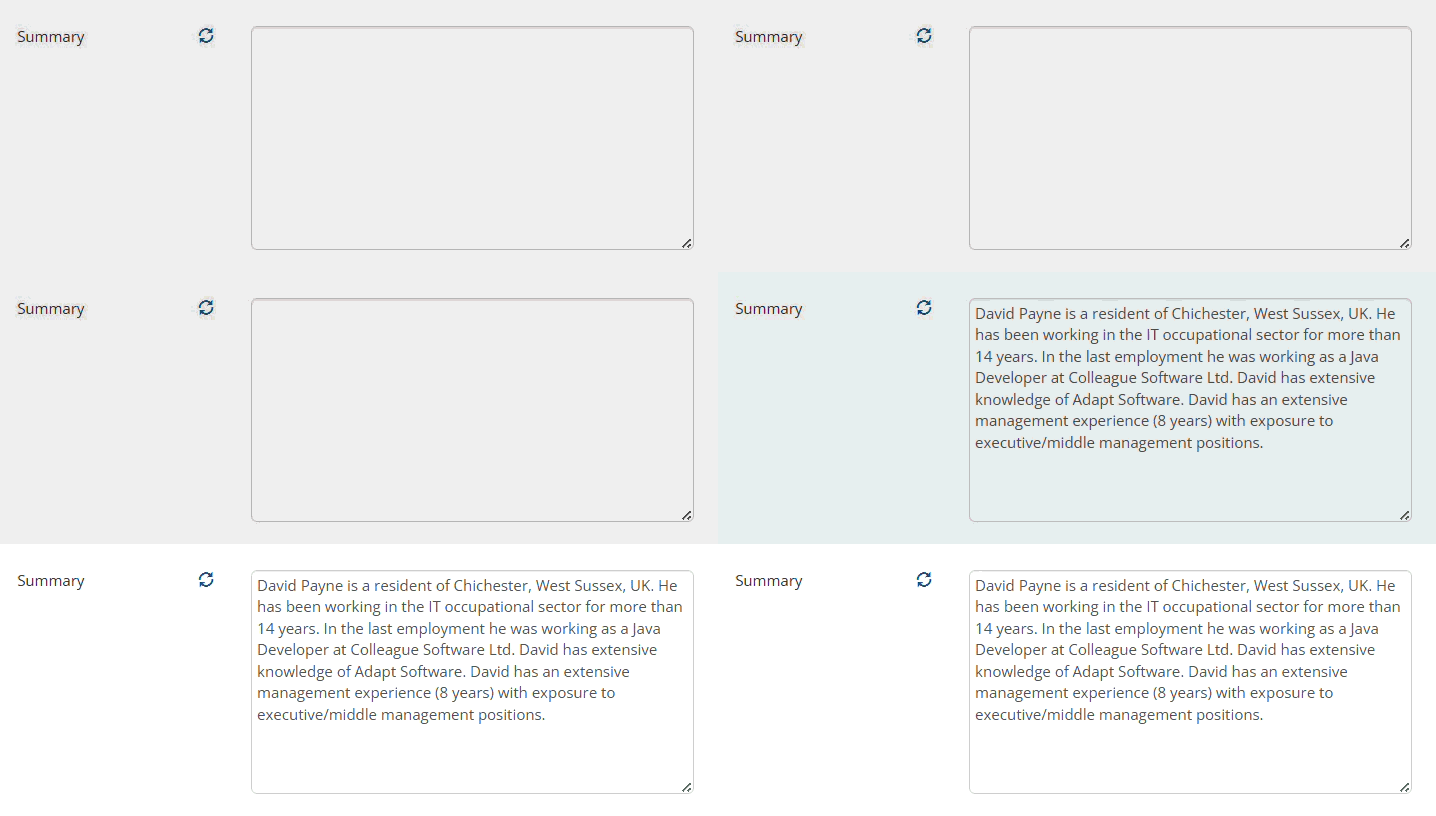
When using Colleague’s inbuilt CV Parser (powered by Daxtra), there will be a ‘Summary’ included with the creation of the Candidate. This is an auto generated feature based on the contents of the CV.
This is visible on the Candidate record based on a Global Setting and available as a merge code for use with formatted CVs.
The Candidate ‘Summary’ can also be updated at any time via a refresh button. This will take the latest default document against the Candidate, scan the file and generate the Summary.
As standard with all User Subscriptions, Colleague offers built in parsing technologies (powered by Daxtra) to perform automative tasks. These tools utilise AI to determine the context of details contain within documentation and map them accordingly to fields and records.
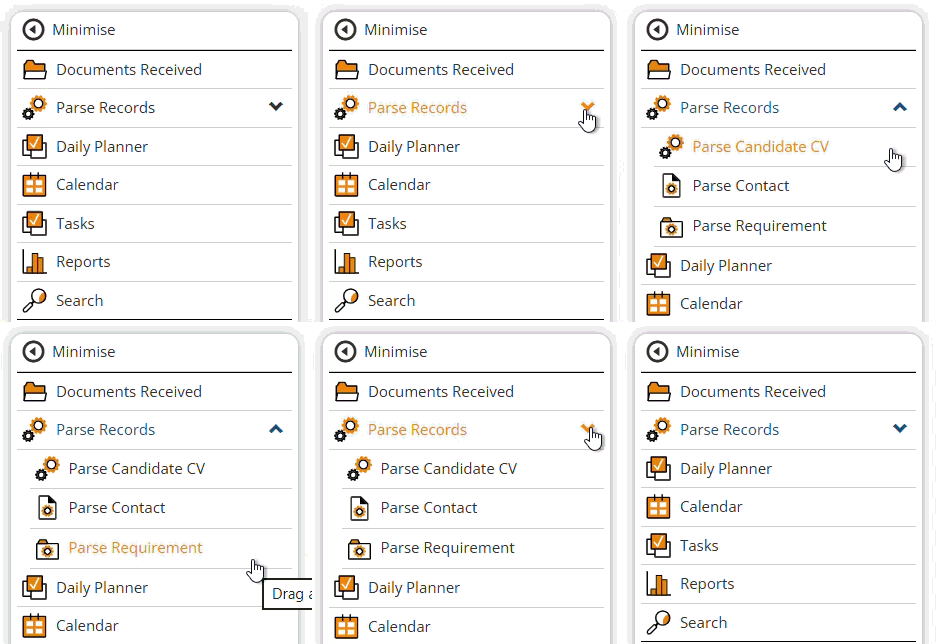
Within Colleague, under the ‘Parse Records’ navigational menu option, there are three parsing options available:
- Candidate CV Parser – To be used when parsing a Candidate CV for the purposes of creating a Candidate record (or updating an existing Candidate)
- Contact Parser – To be used when parsing a profile document for the purposes of creating a new Contact record
- Requirement Parser – To be used when parsing a Job Specification document to create a new Requirement.
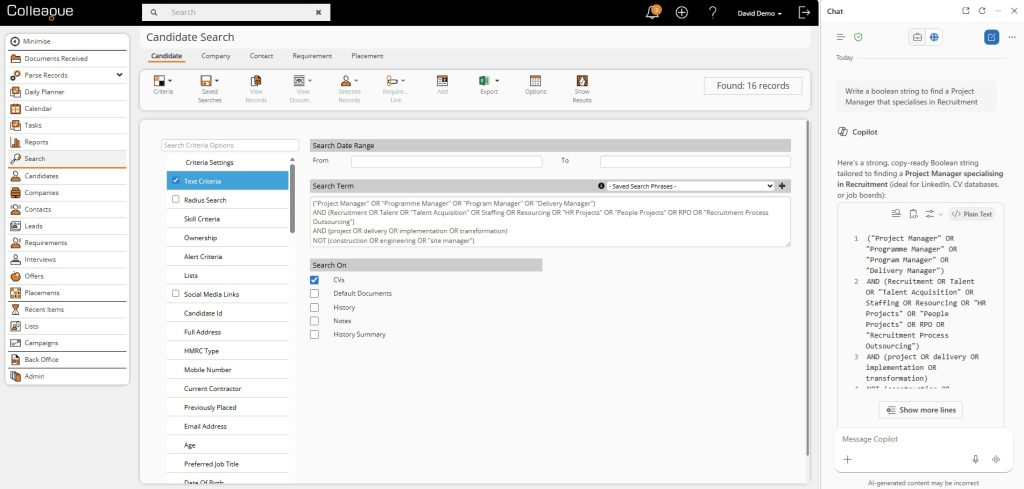
You can use Copilot alongside Colleague to build Boolean search strings in seconds.
If you’re sourcing candidates, this is a game-changer for speeding up your searches and refining results.
- Open: edge://settings/ai
- Make sure “Show Copilot button in toolbar” is enabled
- Head into a Colleague search
- Click the Copilot icon (top right)
Simply type a prompt like:
- Copilot will instantly generate a Boolean string
- You’ll get easy copy options
- Just paste it straight into your Colleague Search Term